

Description
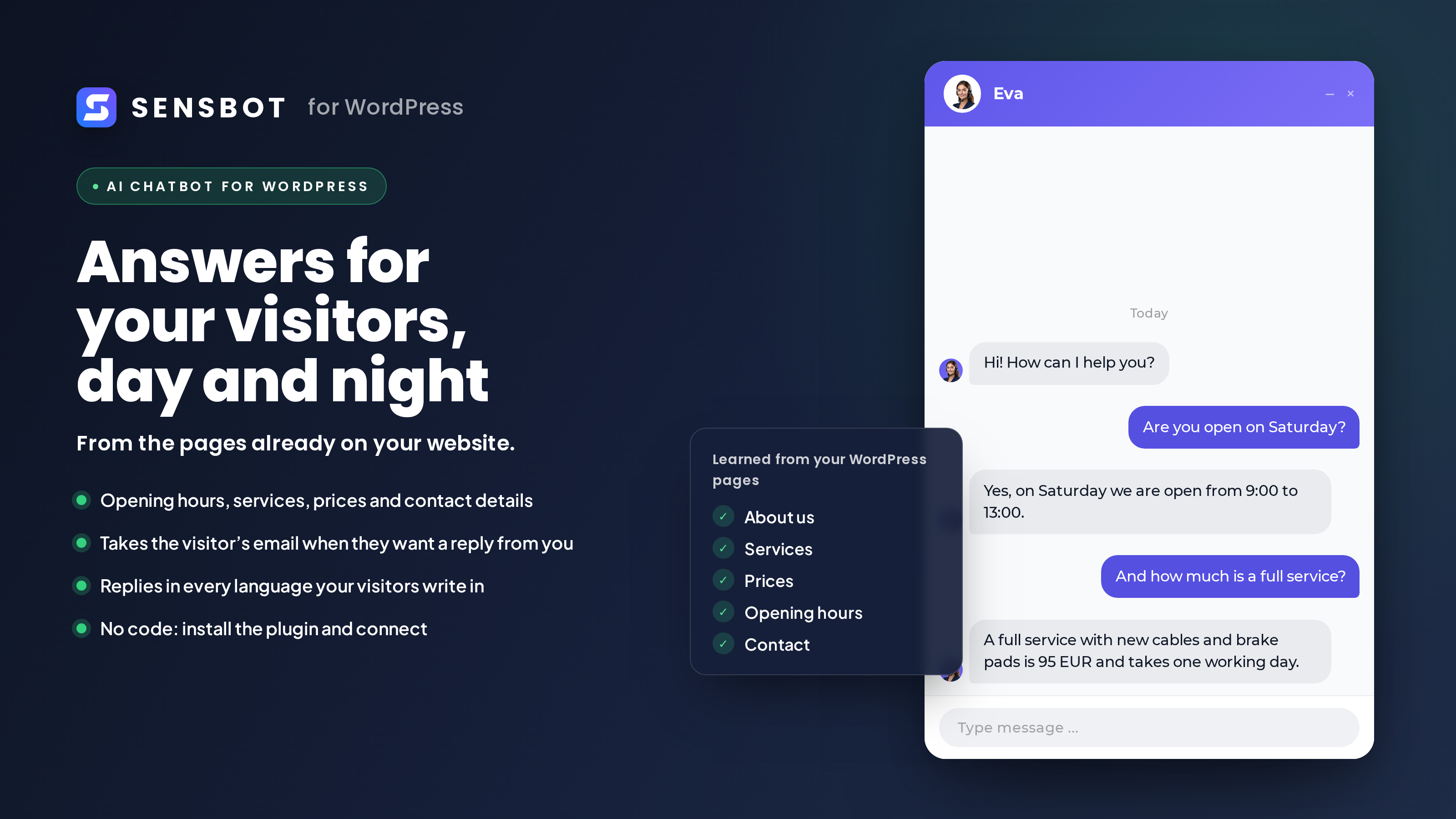
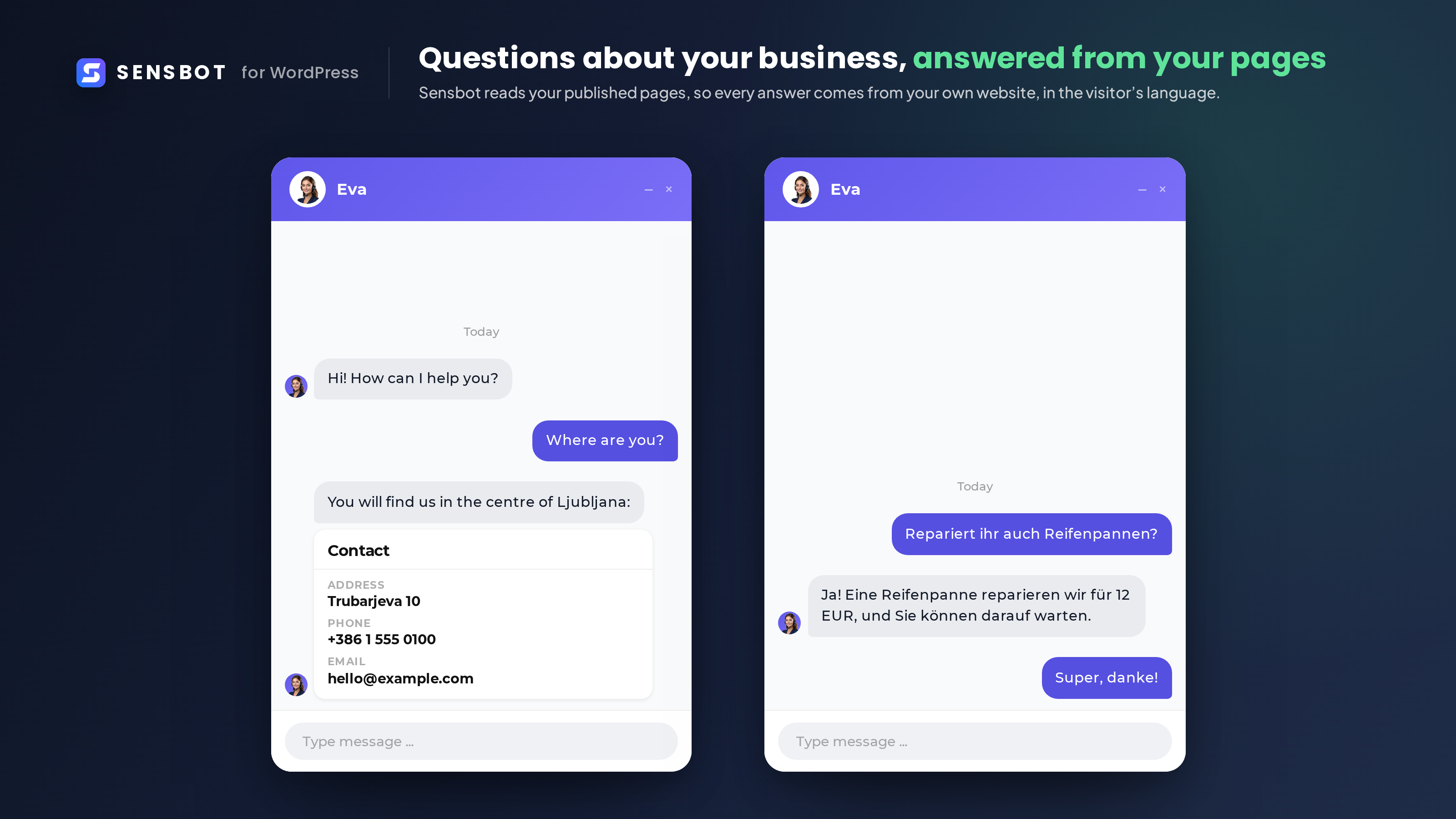
Sensbot adds an AI chatbot to your WordPress website. It reads your published pages and answers visitors from them: what you offer, opening hours, prices you have published, how to book or order, and anything else your pages say. It does not answer from the open internet.
Sensbot is used by 100+ businesses across Europe.
What it does
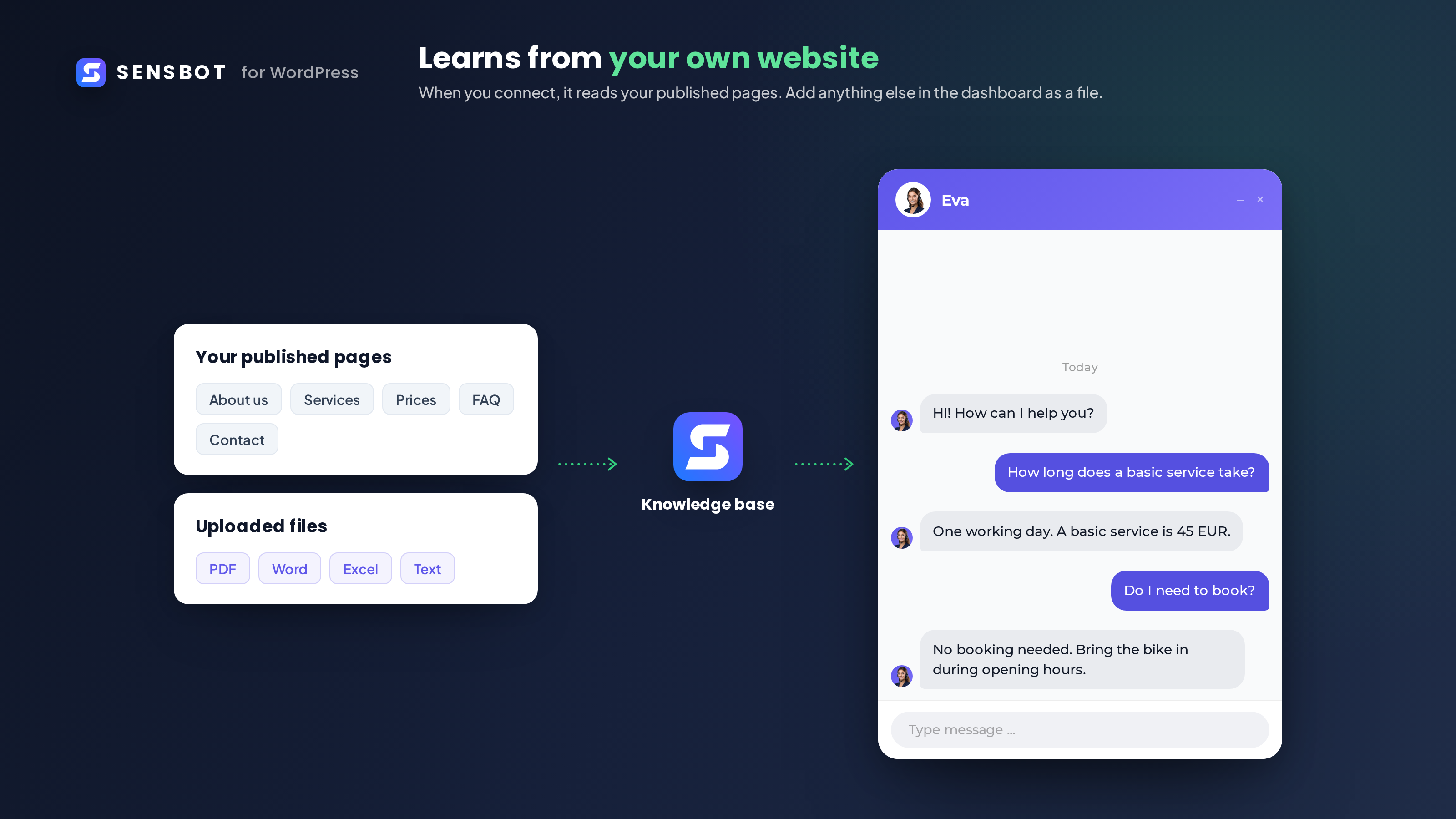
- Answers questions from your published WordPress pages and from anything you add to its knowledge base in the Sensbot dashboard.
- Replies in the language the visitor wrote in, not only in your site’s language.
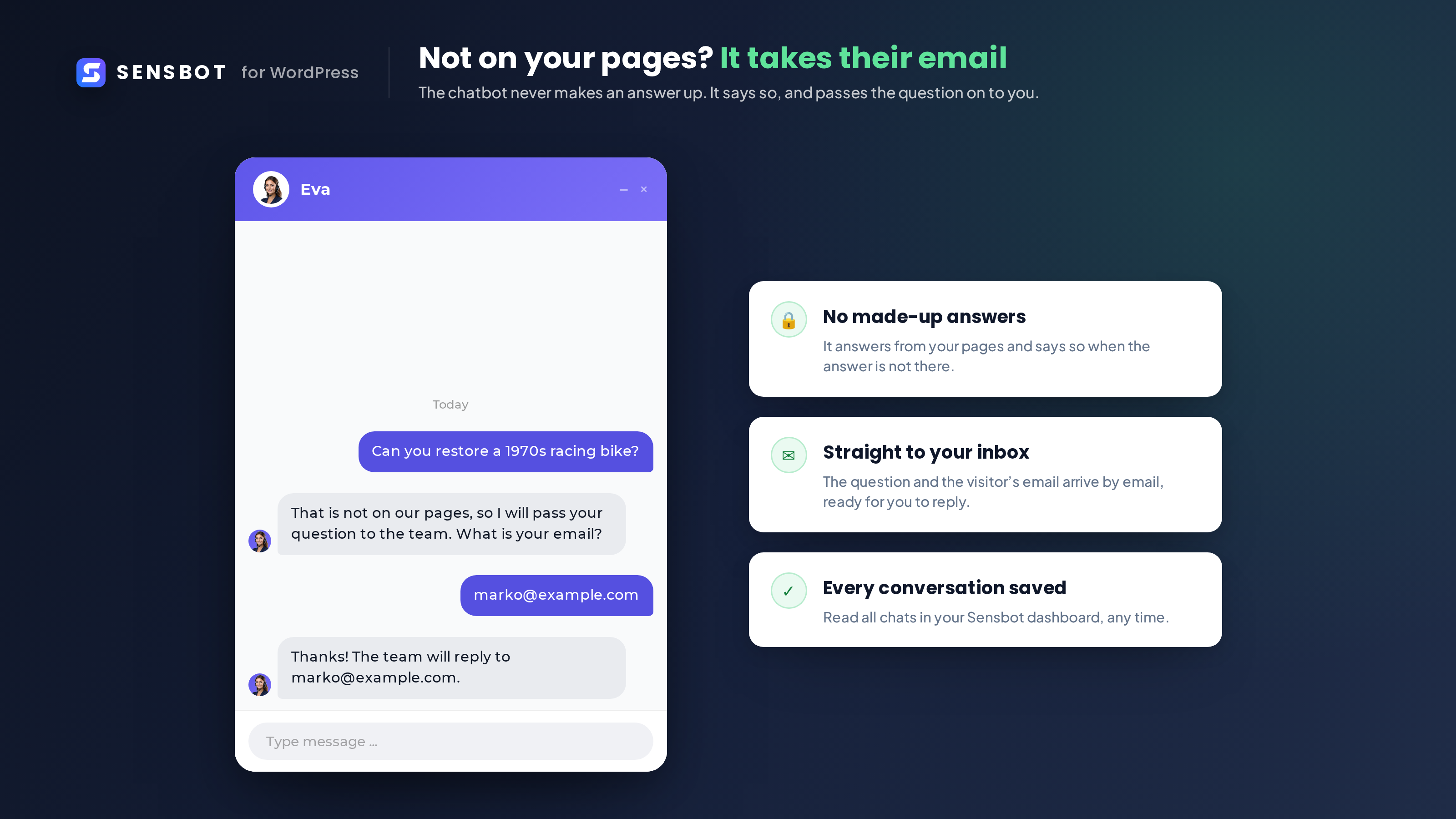
- When it cannot answer, it says so instead of inventing an answer, and offers to take the visitor’s contact details so you can get back to them.
- Collects contact details when a visitor asks to be contacted. You see them in the Sensbot dashboard.
What you control
You can read every conversation in the Sensbot dashboard at https://platform.sensbot.ai and change the chatbot’s instructions, greeting, colour and suggested questions there.
What the plugin does on your site
- Adds the chat widget script to your website’s footer.
- Adds one settings screen under Settings.
- While you are connecting, and only for a few minutes, serves a one-time verification code on a public address of your site (
/wp-json/sensbot-chatbot/v1/site-verification), so Sensbot can confirm the site is yours.
The plugin writes nothing to your content and creates no user accounts or API keys.
Running a WooCommerce shop? Use Sensbot Chatbot for WooCommerce instead: it also answers questions about your products and orders.
Account and pricing
Connecting starts a 14 day free trial. No payment card is needed to start the trial. After the trial, paid plans start at 19 EUR per month. Current plans and limits are at https://sensbot.ai/pricing/. If you do not add a payment method, the trial ends and the widget stops showing on your website. Nothing is charged automatically.
External services
This plugin requires an account on Sensbot, a hosted service operated by Sensnet d.o.o., Slovenia. The plugin does nothing on its own: reading your pages, AI processing and chat handling happen on Sensbot’s servers.
1. Sensbot platform API, https://platform.sensbot.ai
When your site contacts it: only from the plugin settings screen in wp-admin, and only for an action an administrator took: connecting, disconnecting, opening the Sensbot dashboard, or opening the settings screen itself, which reads back the current connection status. Deleting the plugin also tells Sensbot the site is disconnected. There is no background, scheduled or automatic call from your site.
What your site sends: on connect, your site URL, your site name, your site language, the plugin version, the email address entered on the connect form, your acceptance of the terms of use and privacy policy, whether the plugin was installed from WordPress.org, and a one-time verification code. On the later calls, only your Sensbot site identifier and the secret Sensbot issued at connect.
What Sensbot reads from your site: during connect, Sensbot’s servers read the verification address above once. After that they read your site’s public information (/wp-json) and your published pages (/wp-json/wp/v2/pages) through the WordPress REST API, plus a few public pages linked from your homepage, on a recurring schedule. Only published, public content is read. It is stored on Sensbot’s servers so the chatbot can answer from it.
2. Sensbot chat widget, https://cdn.sensbot.ai and https://platform.sensbot.ai
When it is contacted: on every page view of your website, for every visitor, once the site is connected. The widget script is loaded from https://cdn.sensbot.ai and the conversation itself runs against https://platform.sensbot.ai.
What is sent: the visitor’s browser request for the widget script, and then anything the visitor types into the chat, together with the page they are on and a chat session identifier. If a visitor asks to be contacted, the contact details they type are stored so you can reply.
AI processing: messages are sent onward to Sensbot’s AI model providers to generate the reply.
Terms of use: https://sensbot.ai/terms-of-use/
Privacy policy: https://sensbot.ai/privacy-policy/
Deleting the plugin closes the connection on Sensbot’s side. You can also close it at any time with the « Disconnect » button on the plugin settings screen. To have the data already held on Sensbot’s servers deleted, contact Sensbot.
Captures d’écran
Installation
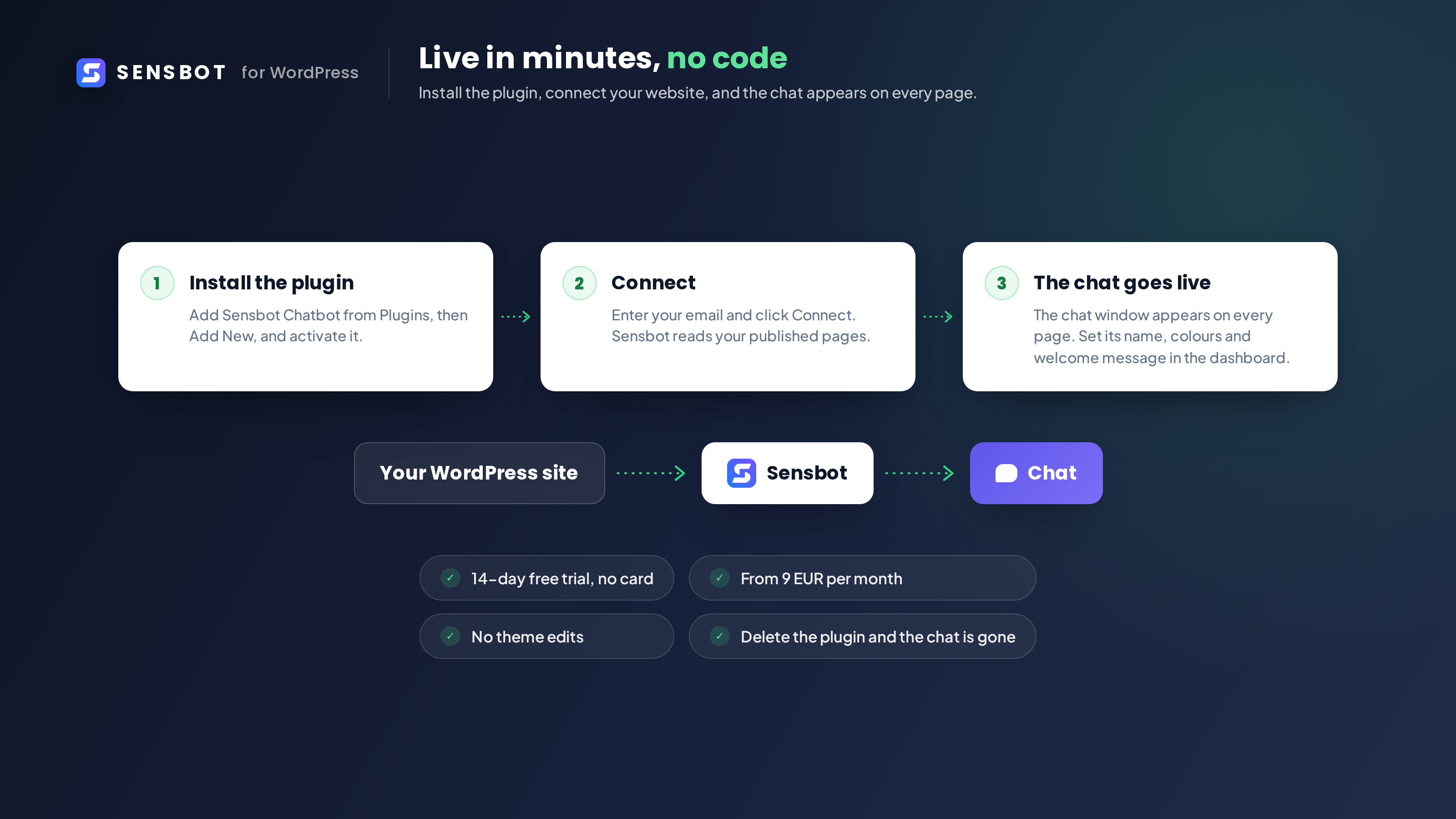
- Install and activate Sensbot Chatbot.
- Go to Settings, then Sensbot Chatbot.
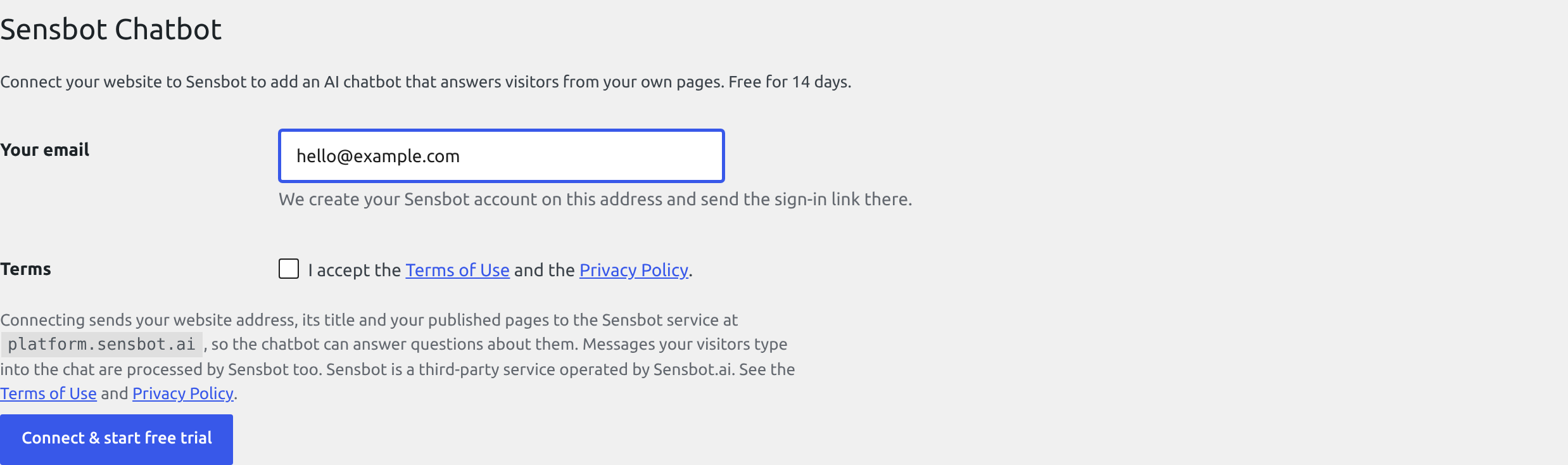
- Check the email address, accept the terms of use and privacy policy, then click « Connect & start free trial ».
- Follow the « Set my password » link on the screen that follows to finish setting up your Sensbot account.
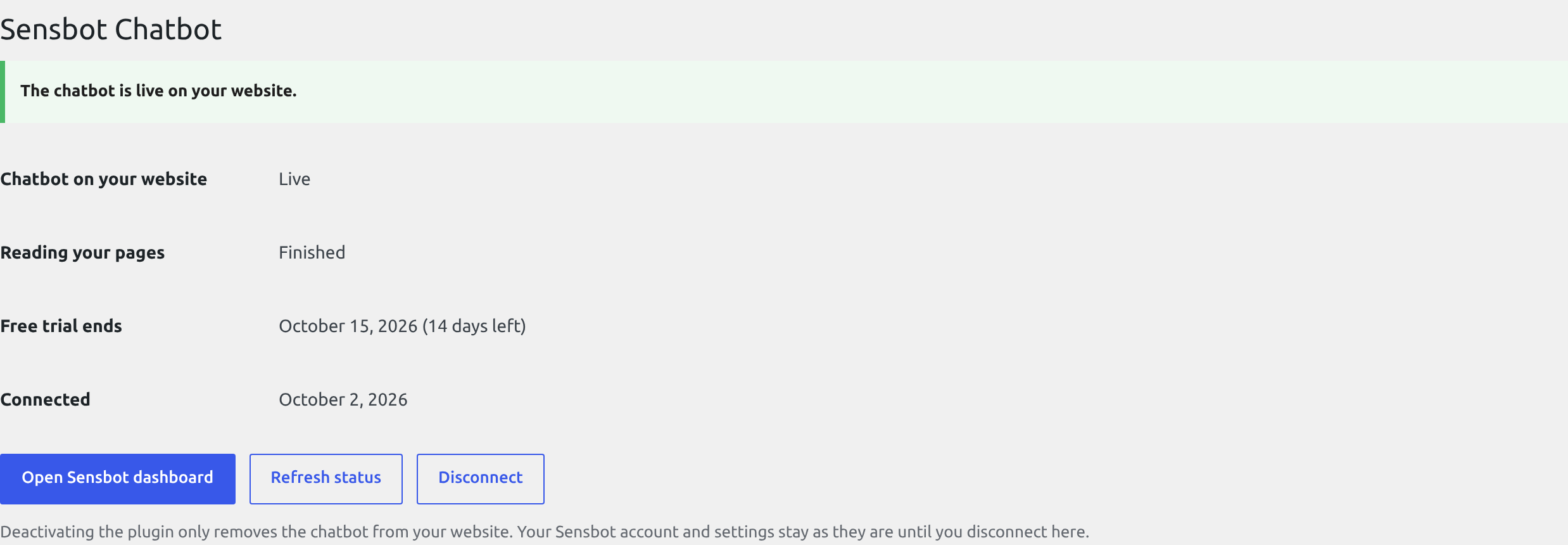
Connecting reads your published pages and can take a minute or two. When it finishes, the chat widget appears on your website. The settings screen tells you whether the chatbot is live and when the trial ends.
Your site must be reachable from the internet over HTTPS, and its REST API (/wp-json) must not be blocked by a security plugin, because Sensbot reads your pages through it.
FAQ
-
Do I need a Sensbot account before I install this?
-
No. Clicking « Connect & start free trial » creates the account and starts a 14 day trial. The email address on the connect form becomes the account email, and the screen that follows gives you a link to set your password.
-
Do I have to enter a payment card to start?
-
No. The trial runs without a card. If no payment method is added by the end of the trial, the widget stops showing and nothing is charged.
-
Which content does the chatbot learn from?
-
Your published WordPress pages, a few public pages linked from your homepage, and anything you add to its knowledge base in the Sensbot dashboard. Drafts, private pages and password-protected pages are not read. Blog posts are not read automatically; you can add the ones you want in the dashboard.
-
Connecting fails with « could not reach this site’s REST API ». What now?
-
Sensbot reads your site through the WordPress REST API. Check that the site is public (not in maintenance mode or behind a login) and that no security plugin blocks /wp-json for visitors, then connect again.
-
Where can I see the conversations and contacts?
-
In the Sensbot dashboard at https://platform.sensbot.ai. When you connect, Sensbot emails the address on the connect form a link to set your password for it.
-
Does it do live chat with a human agent?
-
No. Every reply is written by the chatbot. When it cannot answer, it offers to take the visitor’s contact details so you can reply yourself.
-
I run a WooCommerce shop. Should I use this plugin?
-
Use Sensbot Chatbot for WooCommerce instead. It answers from your pages too, and also knows your products and orders. If both plugins are connected on one site, this one stays quiet so your visitors never see two chat widgets.
-
What happens if I deactivate the plugin?
-
The widget stops showing on your website. Nothing else changes: your account, your settings and your connection stay as they are, so you can deactivate to test something and activate again without setting anything up a second time. To close the connection, use the « Disconnect » button on the settings screen, or delete the plugin.
-
How do I remove everything?
-
Delete the plugin. That closes the connection on Sensbot’s side and removes every setting it stored.
Avis
Il n’y a aucun avis pour cette extension.
Contributeurs & développeurs
« Sensbot Chatbot » est un logiciel libre. Les personnes suivantes ont contribué à cette extension.
Contributeurs
Traduisez « Sensbot Chatbot » dans votre langue.
Le développement vous intéresse ?
Parcourir le code, consulter le SVN dépôt, ou s’inscrire au journal de développement par RSS.
Journal
1.0.0
- First public release. Connect a WordPress website, read its published pages and add the AI chat widget.
- Agencies can connect a client’s website with an agency code (« Installed by an agency »).
- Sensbot has its own menu in the admin sidebar, and a clear Connect button after install.